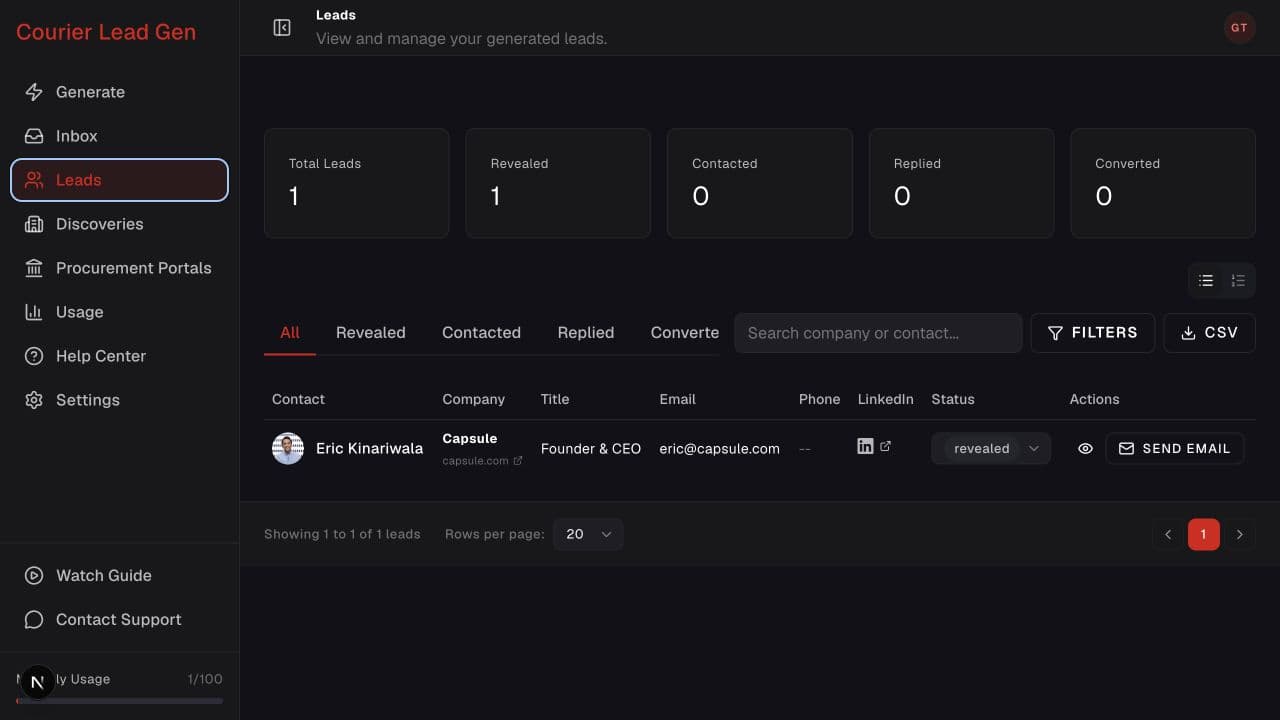
Follow the animated cursor to “Status tabs”.
1
Step 1 of 4
Choose a status
Use the tabs to view all, revealed, contacted, replied, or converted leads.
Find a lead, inspect their details, and keep the relationship status current.
Open LeadsStep 1 of 4
Use the tabs to view all, revealed, contacted, replied, or converted leads.
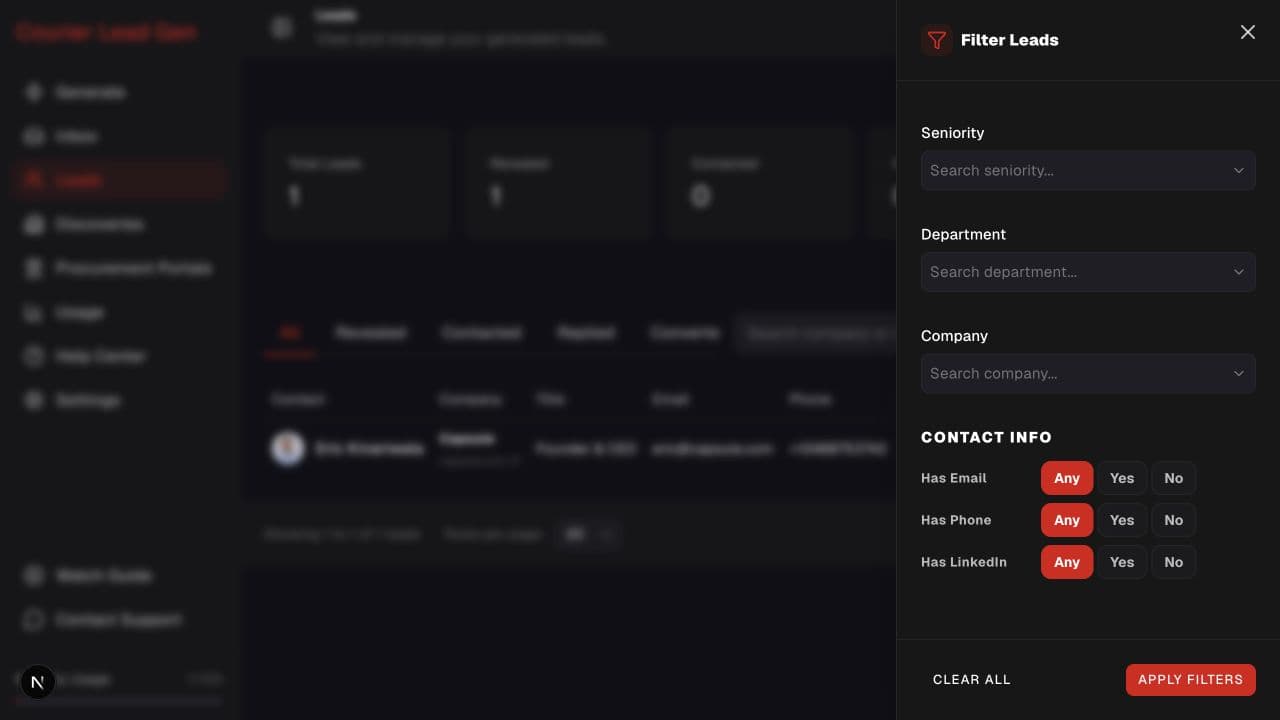
Step 2 of 4
Search by company or contact, or open Filters to narrow by seniority, department, company, email, phone, or LinkedIn availability.
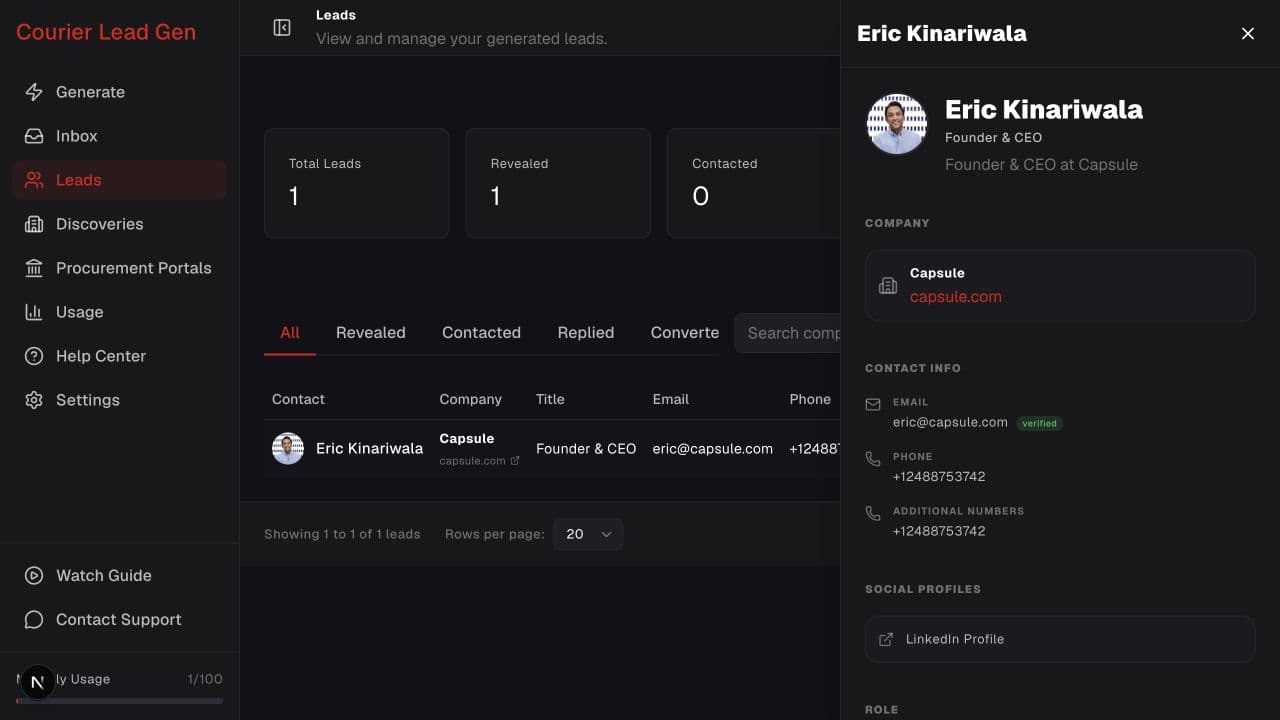
Step 3 of 4
Select the eye action in a lead row. The detail panel shows company, verified contact information, social profiles, role, location, and employment history.
Step 4 of 4
Use the status menu in the lead row as the relationship progresses.
Open the feature and follow the same steps in your account.
Open Leads