All visual guides
Account 2 min

Permanently delete your account

Delete the user account and its associated leads, discoveries, and application data.

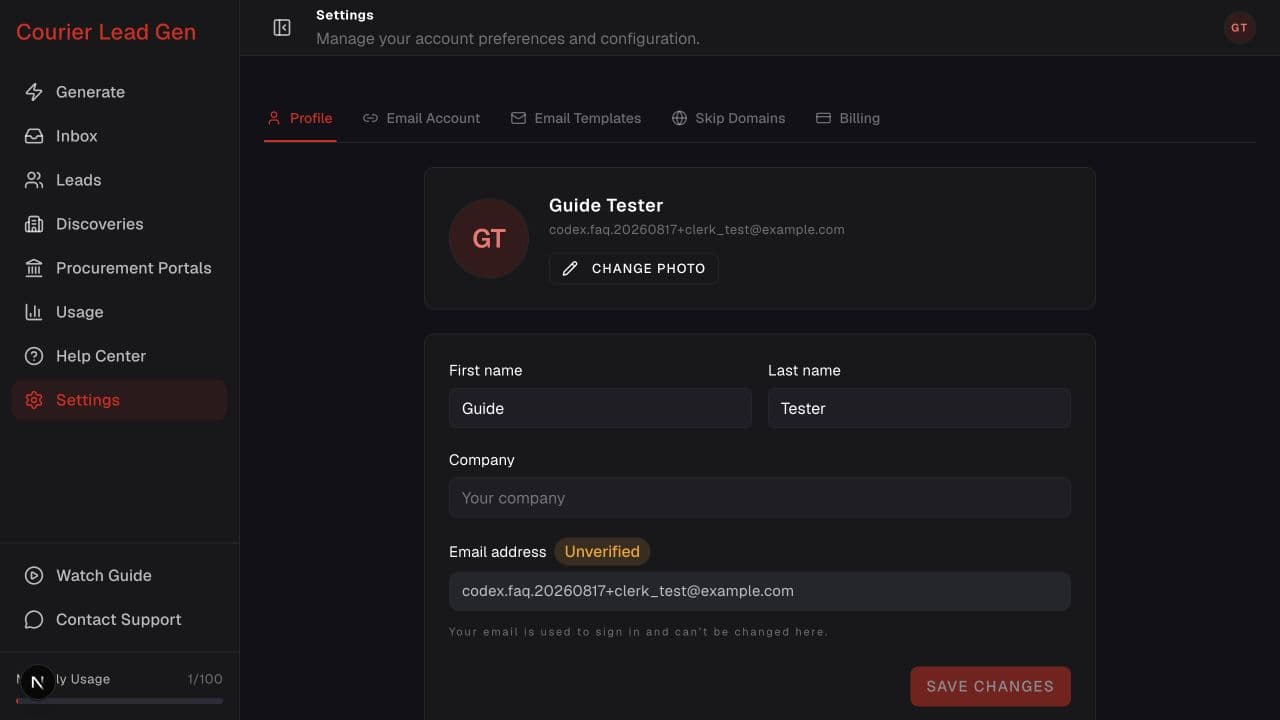
Open Profile settings
Profile settings page with photo, name, company, and account security controls
Follow the animated cursor to “Profile”.
1

Step 1 of 5

Open Profile settings

Go to Settings and select Profile.

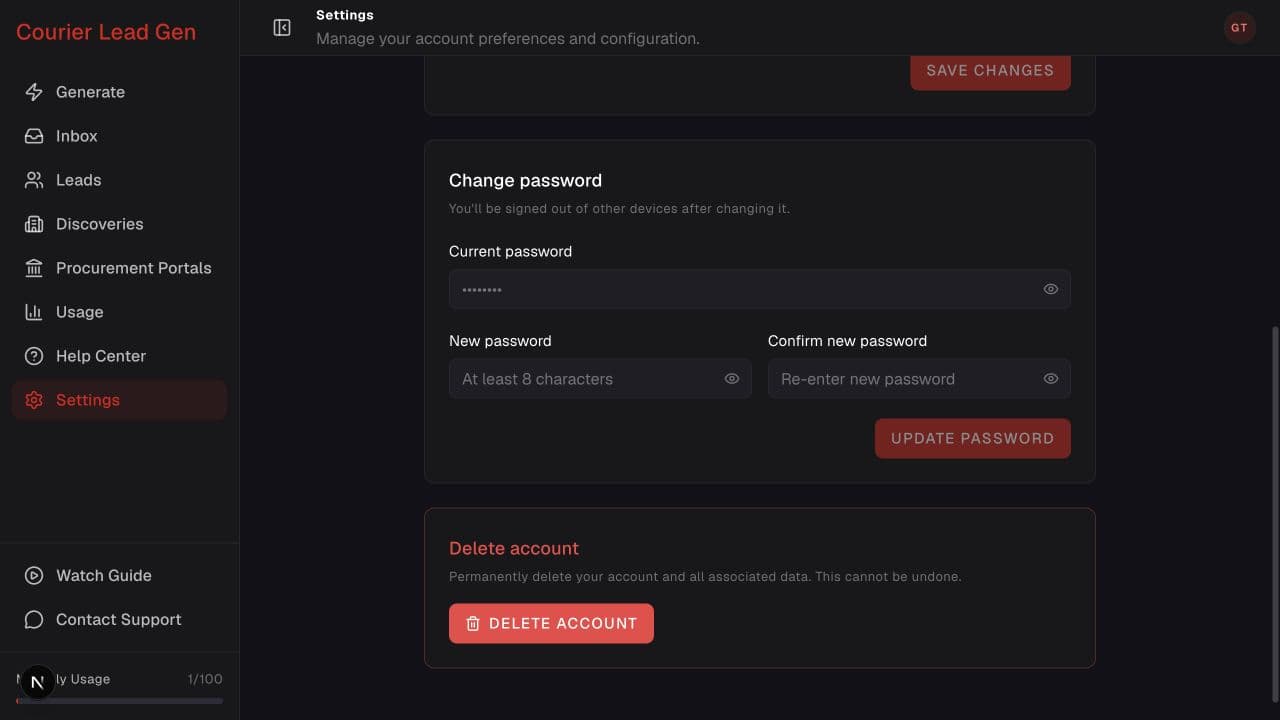
Profile settings scrolled to the Delete account panel
Follow the animated cursor to “Delete account panel”.
2

Step 2 of 5

Scroll to Delete account

Move past the profile and password sections until you reach the red Delete account panel.

Profile settings showing the Delete Account button
Follow the animated cursor to “Delete Account”.
3

Step 3 of 5

Select Delete Account

Select Delete Account to open the final confirmation. Nothing is deleted yet.
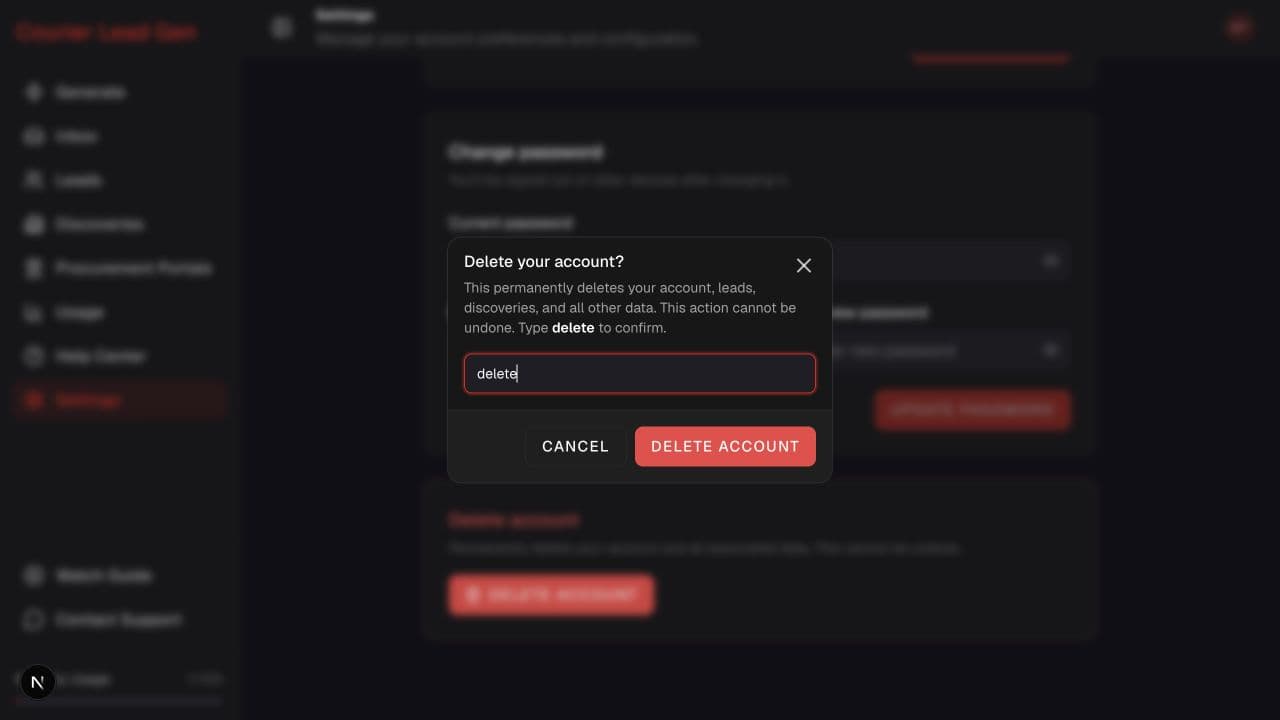
Delete account confirmation dialog requiring the word delete
Follow the animated cursor to “Type delete”.
4

Step 4 of 5

Type delete to confirm

Read the warning, then type the word delete into the confirmation field if you still want to continue.

Final Delete Account confirmation button
Follow the animated cursor to “Final Delete Account”.
5

Step 5 of 5

Submit the permanent deletion

Select Delete Account in the confirmation dialog. The account will be signed out after deletion.

This action cannot be undone. It permanently removes the account, leads, discoveries, and associated application data. Export anything you need before continuing.

You’re ready

Open the feature and follow the same steps in your account.

Open Profile settings