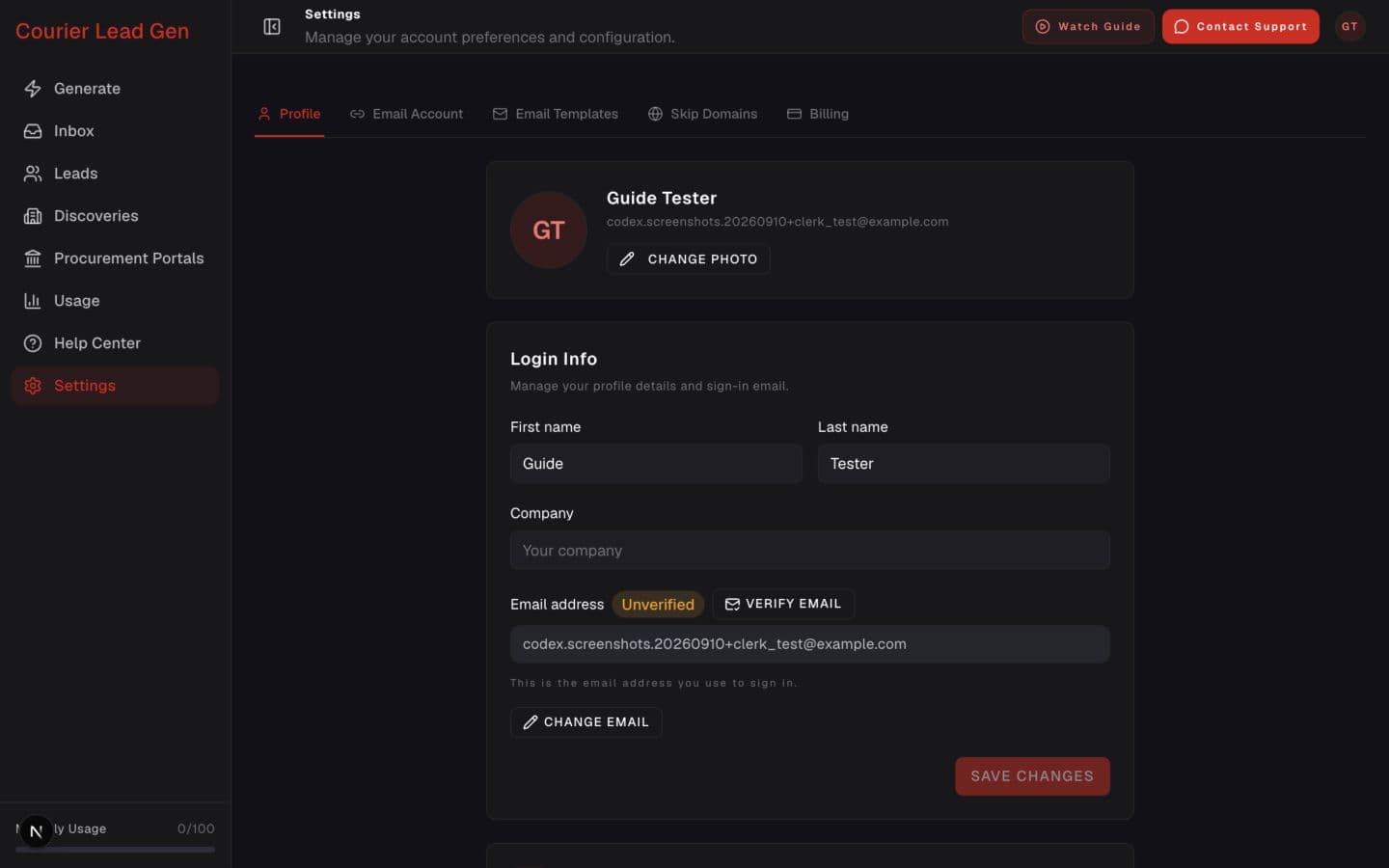
Follow the animated cursor to “Profile”.
1
Step 1 of 6
Open Profile settings
Sign in, open Settings, and select Profile.
Change the email address you use to sign in and verify the new address securely.
Open Login InfoStep 1 of 6
Sign in, open Settings, and select Profile.
Step 2 of 6
In the Login Info section, find the email address you currently use to sign in.
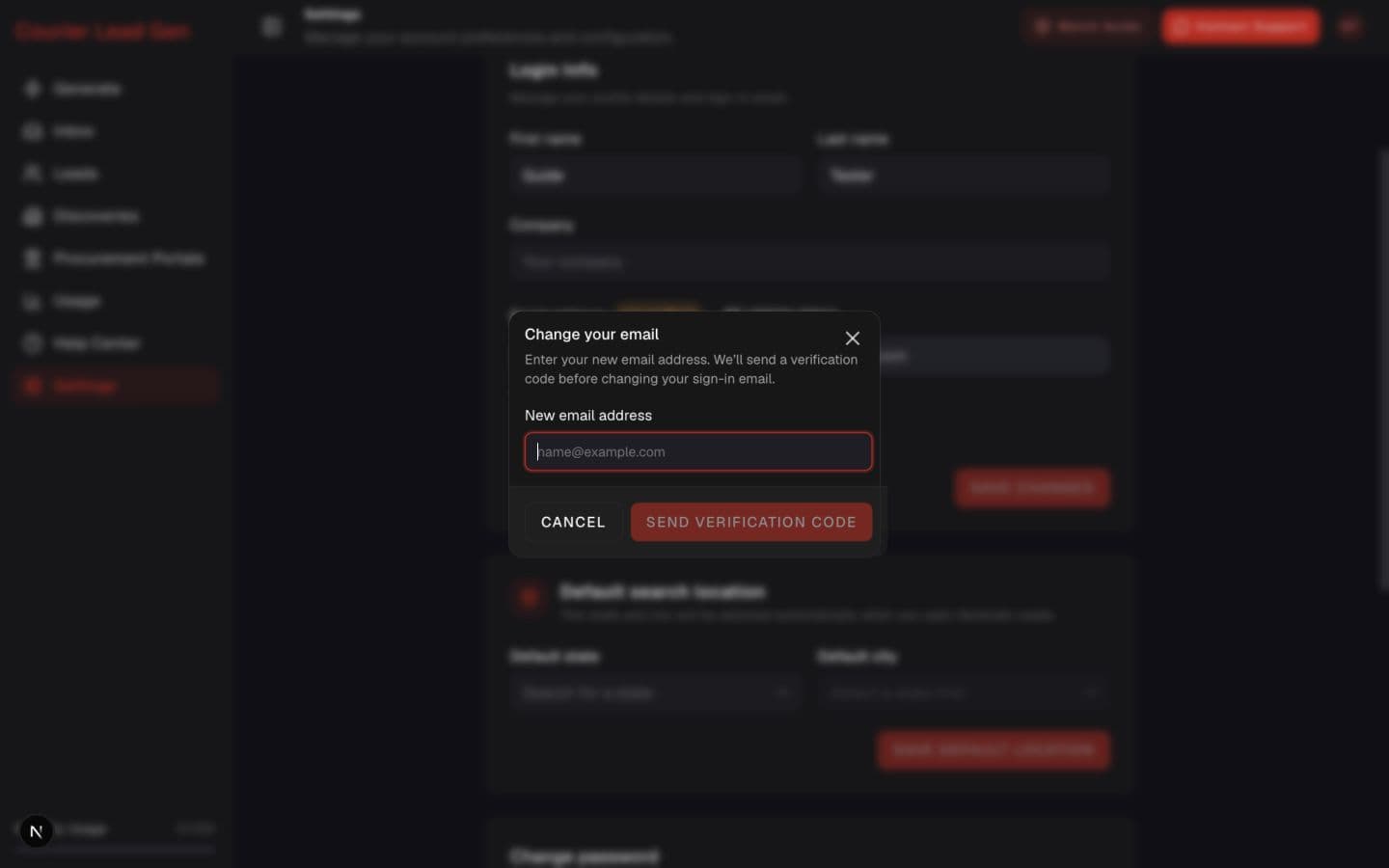
Step 3 of 6
Select Change email, then enter the new email address you want to use.
Step 4 of 6
Check that the new address is correct, then select Send verification code. Open the inbox for your new email address.
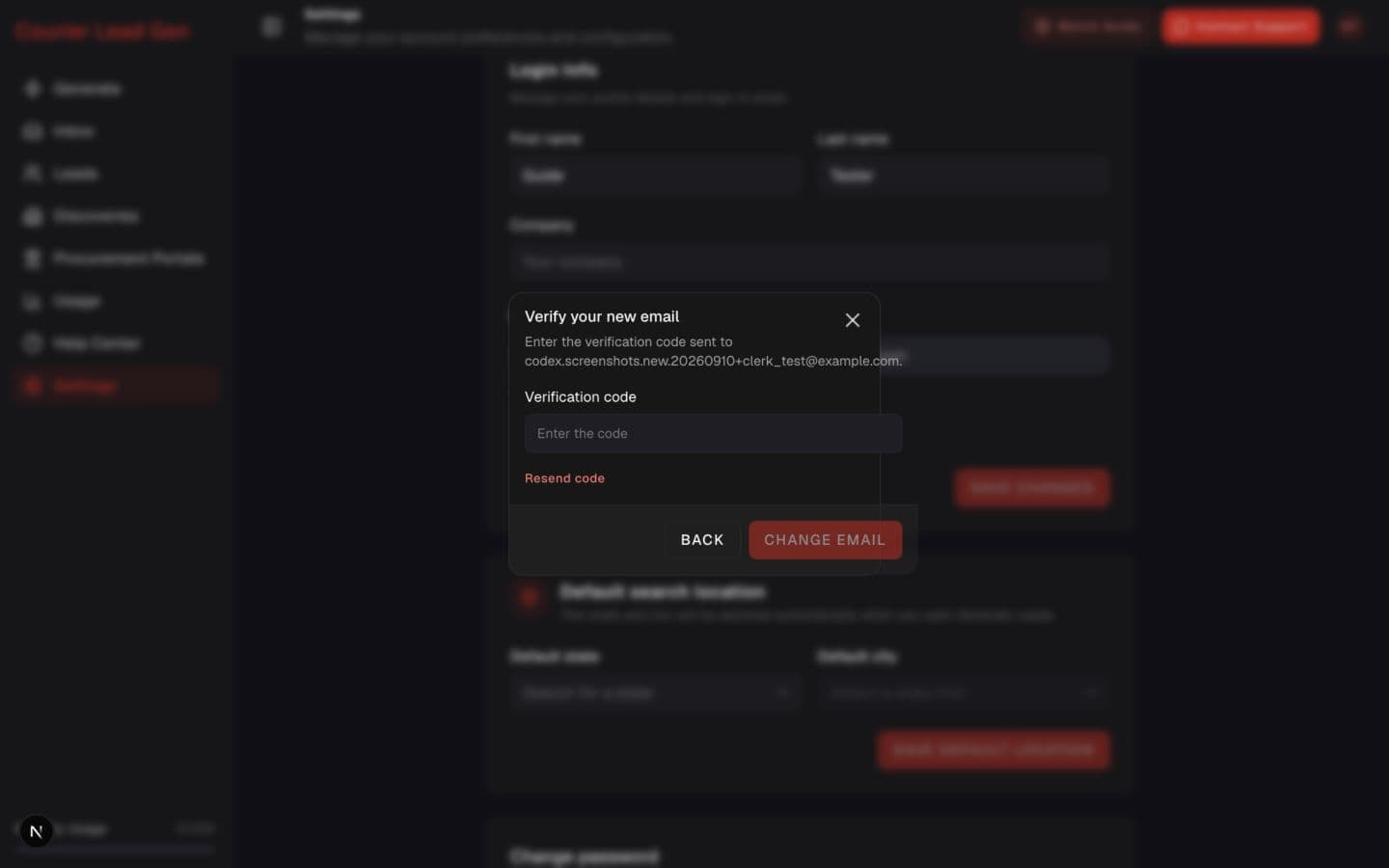
Step 5 of 6
Enter the code from the email and select Change email. If no code arrives, check the spam folder or select Resend code.
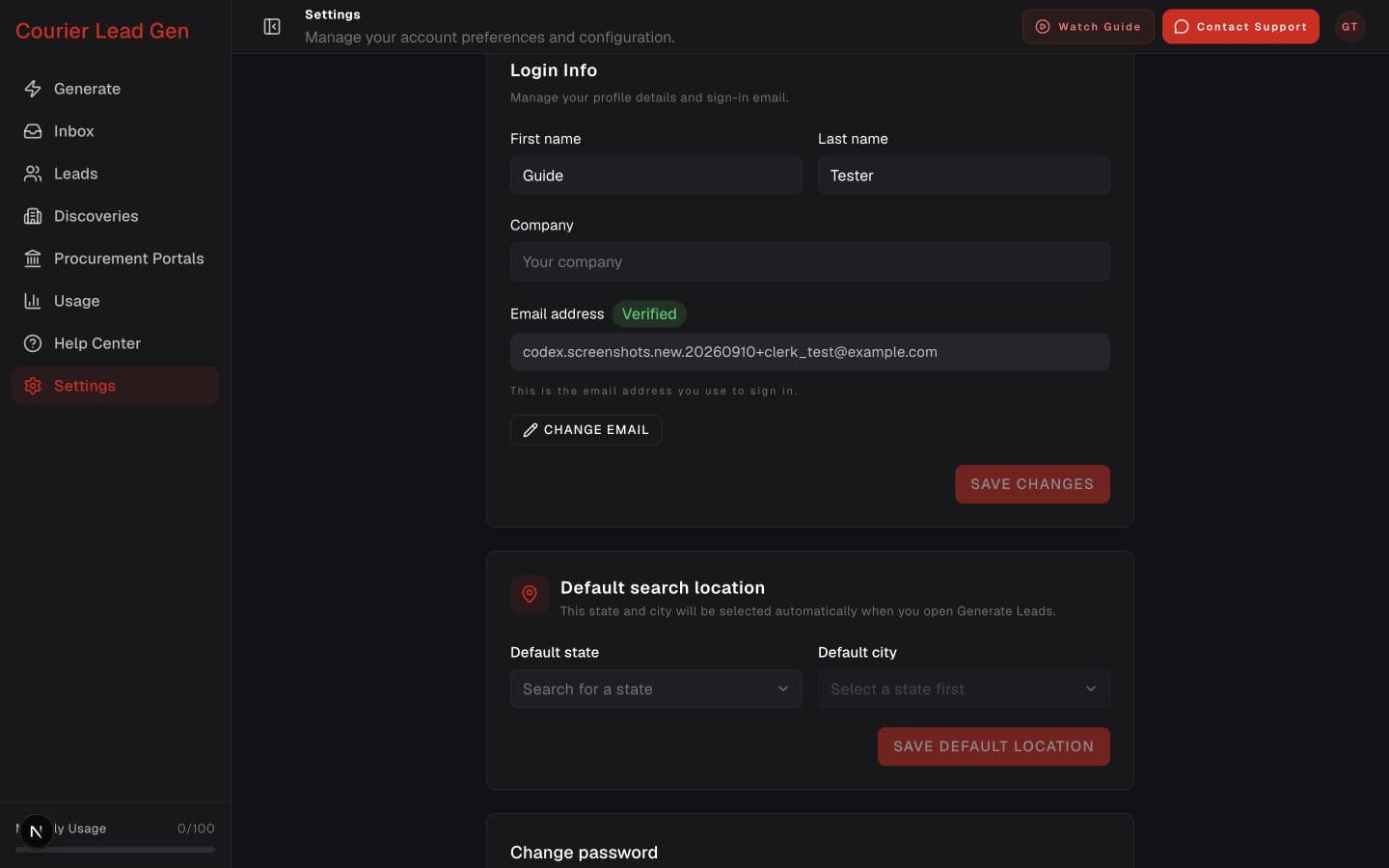
Step 6 of 6
Your new verified address now appears in Login Info and becomes the email you use to sign in.
Open the feature and follow the same steps in your account.
Open Login Info