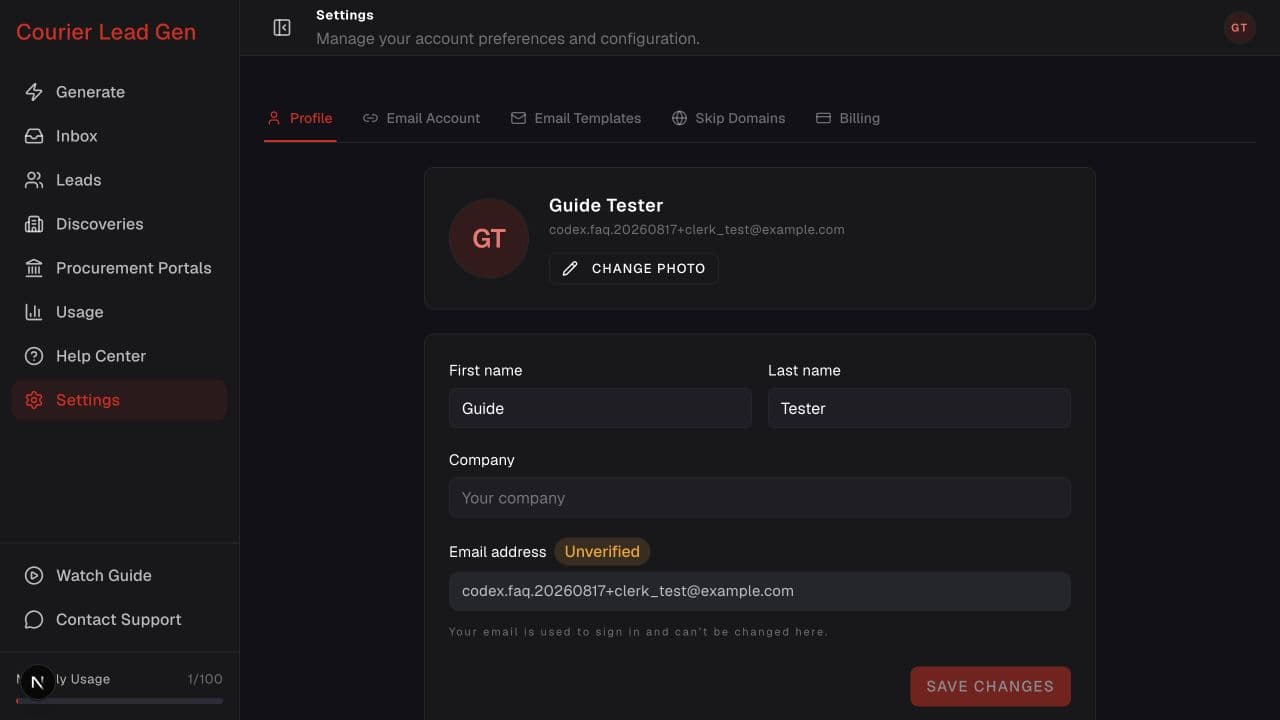
Follow the animated cursor to “Profile”.
1
Step 1 of 6
Open Profile
Go to Settings and select Profile.
Change your photo, name, company information, or account password.
Open Profile settingsStep 1 of 6
Go to Settings and select Profile.
Step 2 of 6
Select Change Photo and choose a new profile image.
Step 3 of 6
Update your first name, last name, or company, then select Save Changes.
Step 4 of 6
If your email shows Unverified, select Verify email. Enter the code sent to your inbox, then select Verify email again.
Step 5 of 6
Select Change email, enter the new address, and verify it with the code sent there. The new address becomes your sign-in email only after verification succeeds.
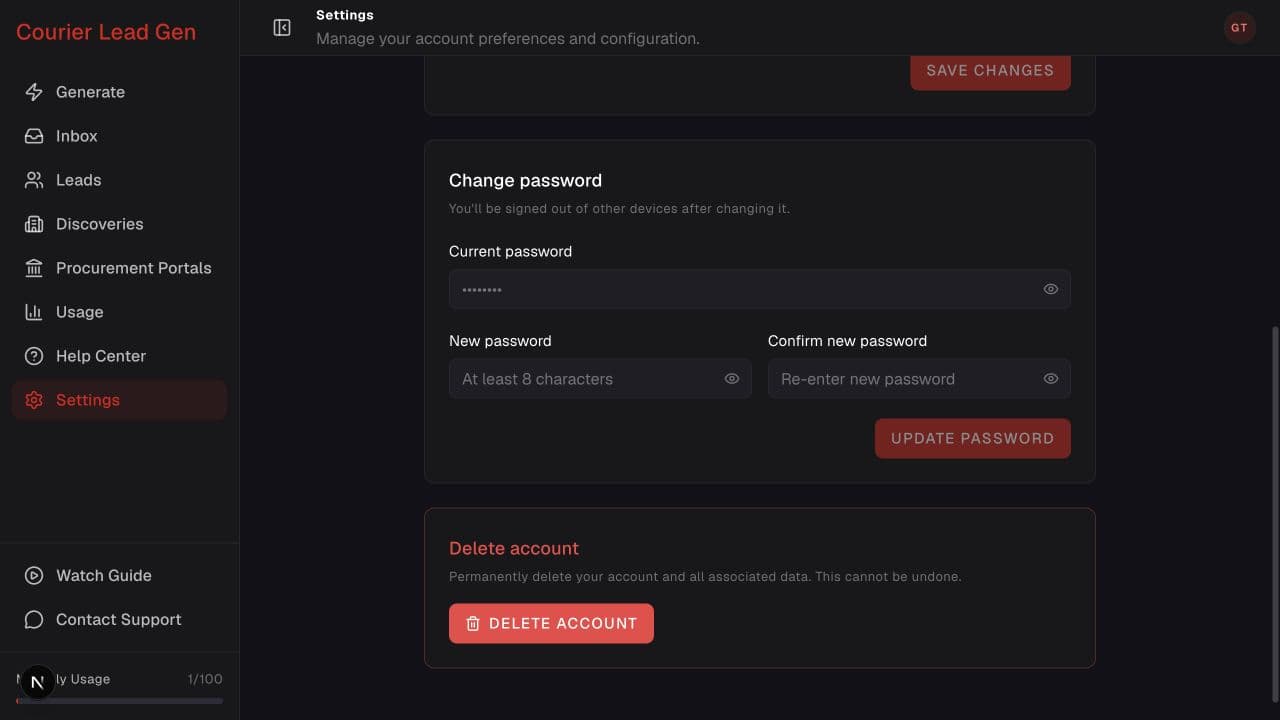
Step 6 of 6
Scroll to Change password, enter the current and new password twice, then select Update Password. You may be asked to reverify your account.
Open the feature and follow the same steps in your account.
Open Profile settings